
Cables needed (all cables and adapter included):
- 1x USB-C to USB-C
- 1x H5 adapter USB-C to USB-C
- One time driver installation, check driver section.
Cables needed (all cables and adapter included):

Note
To boost brightness to 100%, connect an additional USB-C or USB-A cable from your laptop or an external power source.


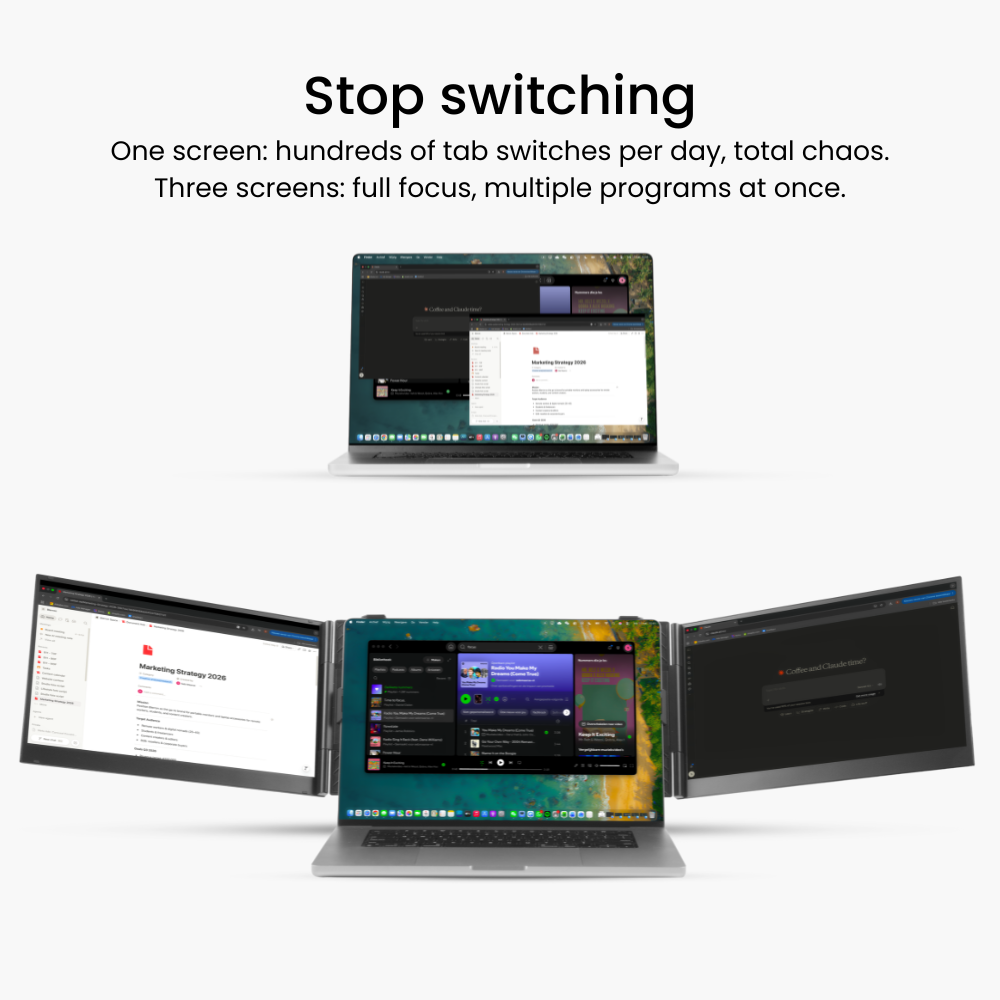
MacBooks with an M1, M2, or M3 chip are limited to just one external display by Apple.
To enable multiple screens, we use a specific adapter and driver.
After a one-time installation, you can easily use multiple screens simultaneously.
This is how you can install the driver:
1. Connect the H5 adapter. When the H5 adapter is connected to the laptop, a new folder appears named: USB Display-1.1
2. Open the folder and click on “USB Display”
3. A message will then appear saying “Move to Applications folder?” click on “Move to Applications Folder”
4. Then click on “Open System Settings”
5. Check the box for USB Display
6. Click “Quit & Reopen”
7. The driver is now correctly installed and the second screen will turn on
If the screen does not turn on, try the following:
The USB Display driver runs in the background as a display service. It captures the visual output from your system, compresses it, and sends it over USB to external screens, where it is rendered again.
It does not read, store, or transmit personal files or user data. It only processes pixel data (the same image your GPU would normally send through HDMI or DisplayPort). Official versions are digitally signed and approved by Windows/macOS, which prevents tampering.
Because it operates purely on display output and within the OS security framework, it does not pose a privacy or data theft risk when installed from a trusted source.
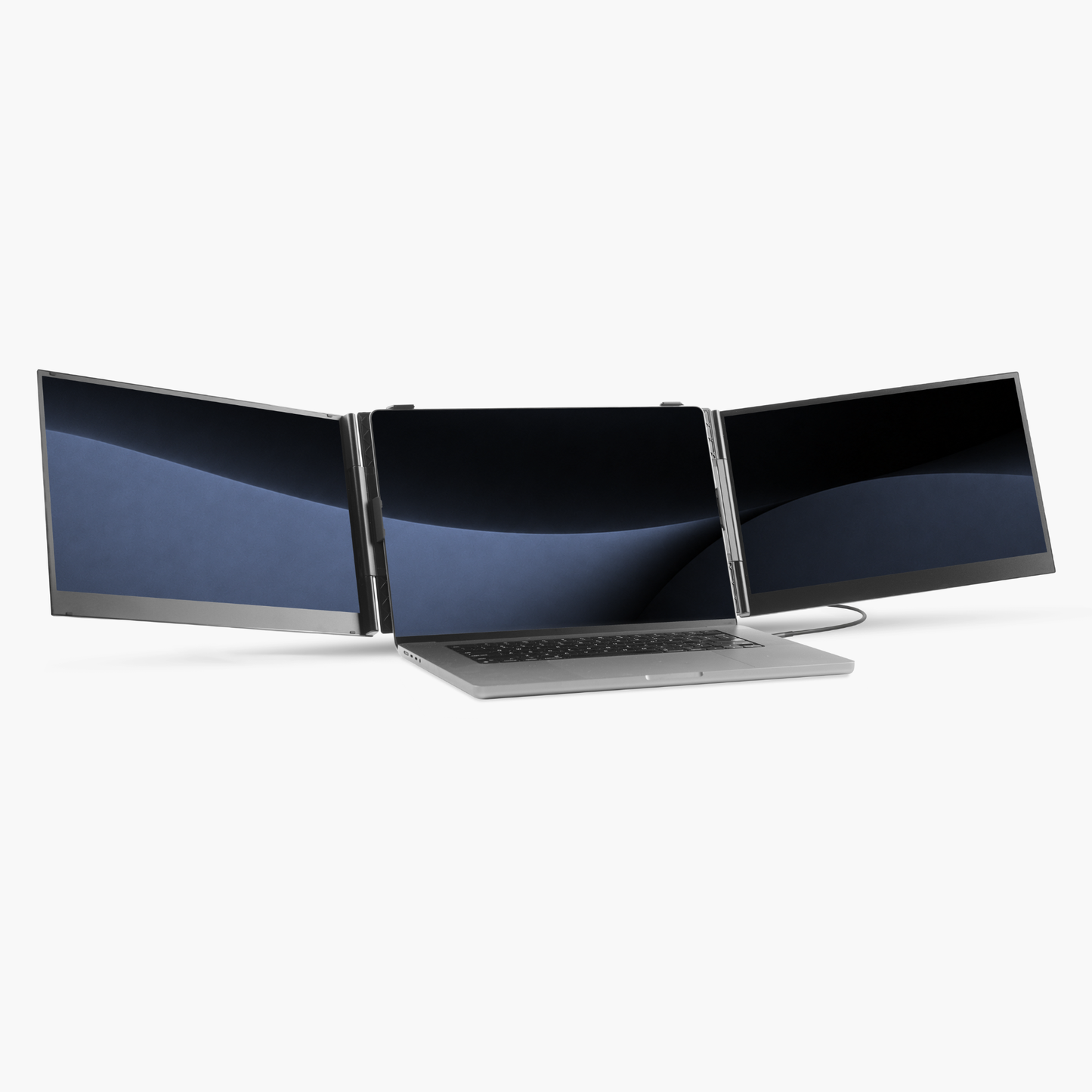
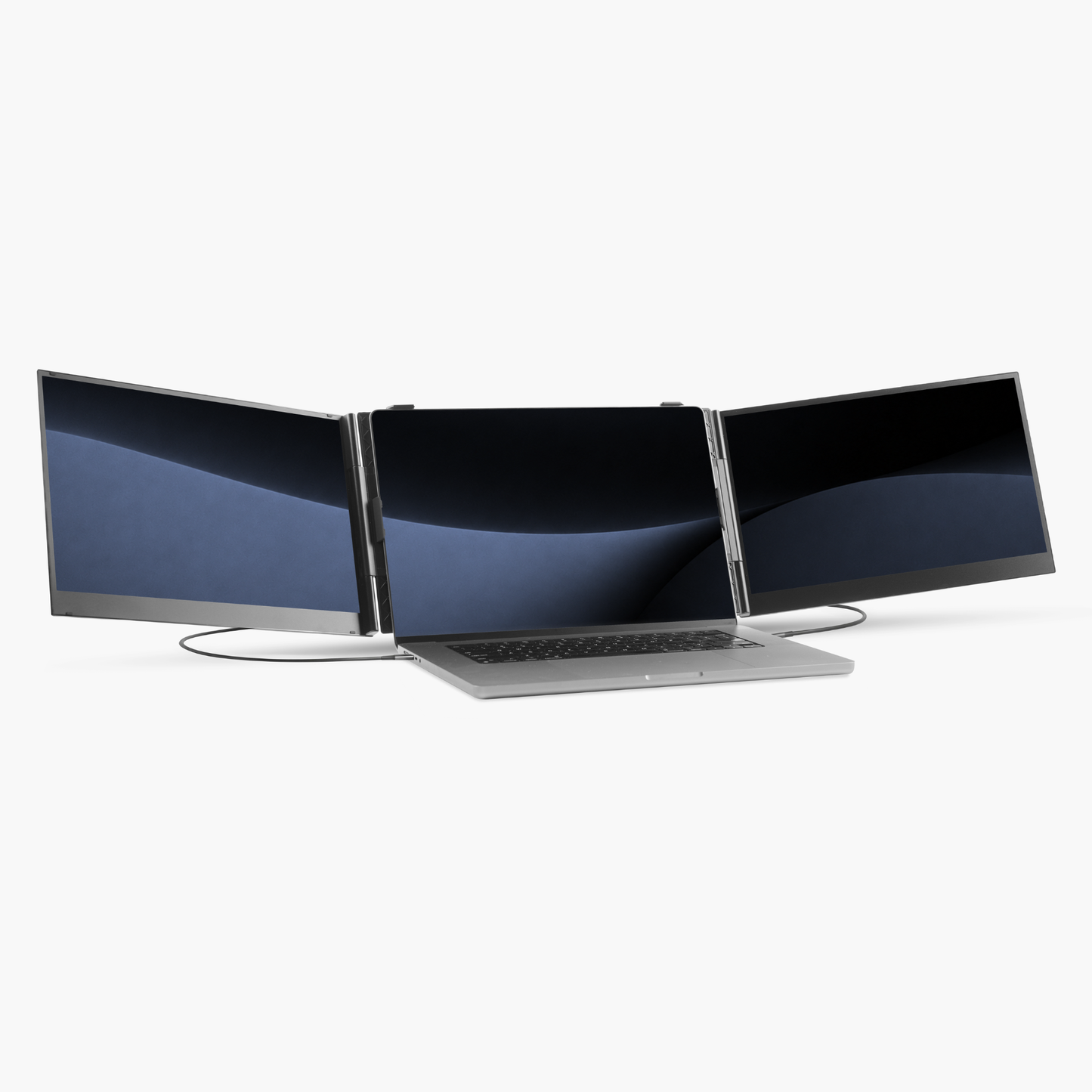
How to set up the Blerron Flex / Flex Pro:
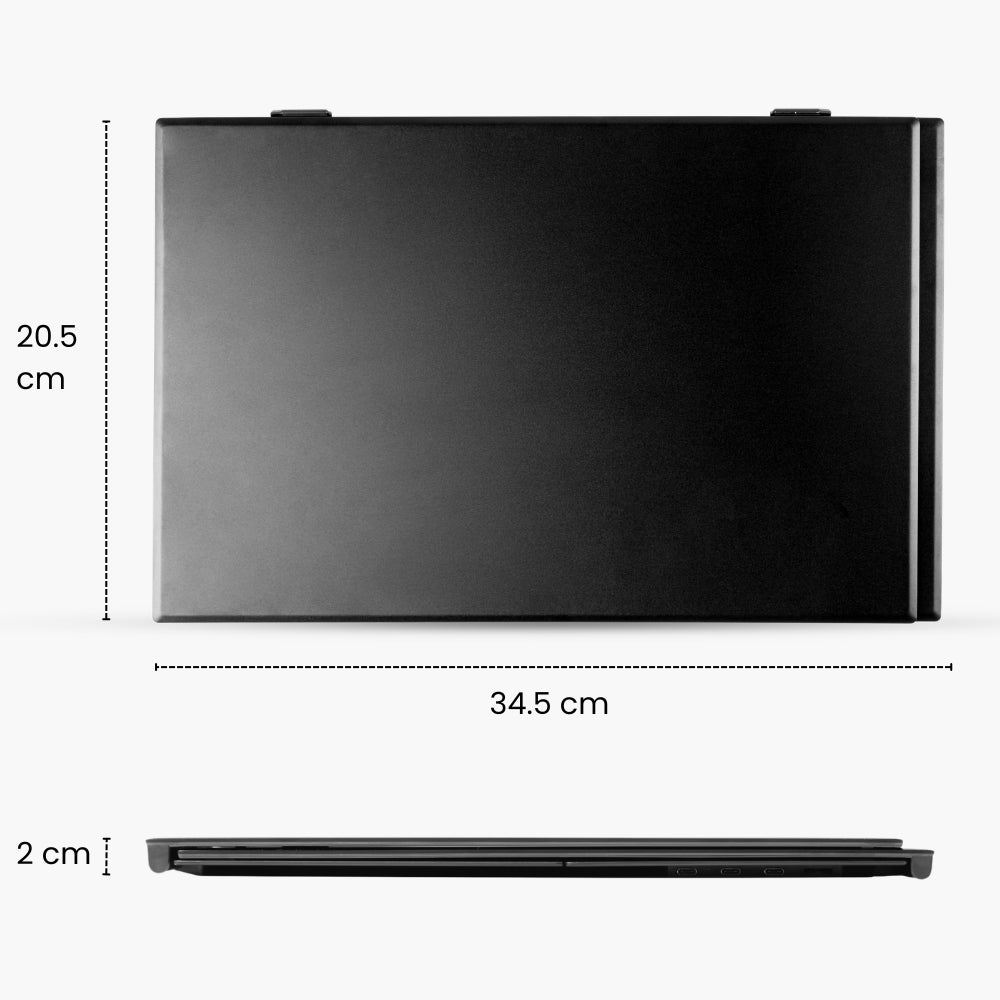
Specifications:
Fits on laptops from:

Specifications:
Fits on laptops from:

Blerron Flex - 14"/15.3"
Blerron Flex Pro - 14"/15.3"

Blerron Flex
Blerron Flex
1920 x 1080
Resolution
1920 x 1200
14"
Screens size
15.3"
13" - 17.3"
Fits laptops from
15" - 17.3"
1 KG
Weight
1.3 KG
76%
sRGB
100%
16:9
Aspect ratio
16:10
300 nits
Brightness
300 nits
60 Hz
Refresh rate
60 Hz
Flex
vs
Flex Pro
Yes
Driver
Yes
2
Cables
1










We are located in the Netherlands and ship all our orders directly from here and have a dedicated European customer service team.

Free shipping
Enjoy free shipping on all orders over €75

Try Blerron risk free for 50 days. Return it easily for a full refund if you're not satisfied. See guarantee details.

Pay later with Klarna
Choose to split your payments in installments with Klarna or pay by Apple Pay, Card, Google Pay, iDEAL, PayPal, or Revolut Pay.
We are located in the Netherlands and ship all our orders directly from here and have a dedicated European customer service team.
Free shipping
Enjoy free shipping on all orders over €75
Try Blerron risk free for 50 days. Return it easily for a full refund if you're not satisfied. See guarantee details.
Pay later with Klarna
Choose to split your payments in installments with Klarna or pay by Apple Pay, Card, Google Pay, iDEAL, PayPal, or Revolut Pay.


